An iPhone text-expansion app commonly exposes saved snippets through a custom keyboard. Apple replaces third-party keyboards in secure and phone-pad fields, and individual apps can reject them. Full Access can enable network and shared-container capabilities, so users should understand why an app requests it and how the developer handles keystroke data.
Key takeaways
- A custom keyboard is selected by the user and operates inside Apple's extension model.
- Secure text fields and phone-number keyboard types use the system keyboard.
- An app can disable all third-party keyboards in its own text fields.
- Do not store or insert passwords, private keys, or one-time codes as ordinary snippets.
How mobile snippet insertion differs from Mac expansion
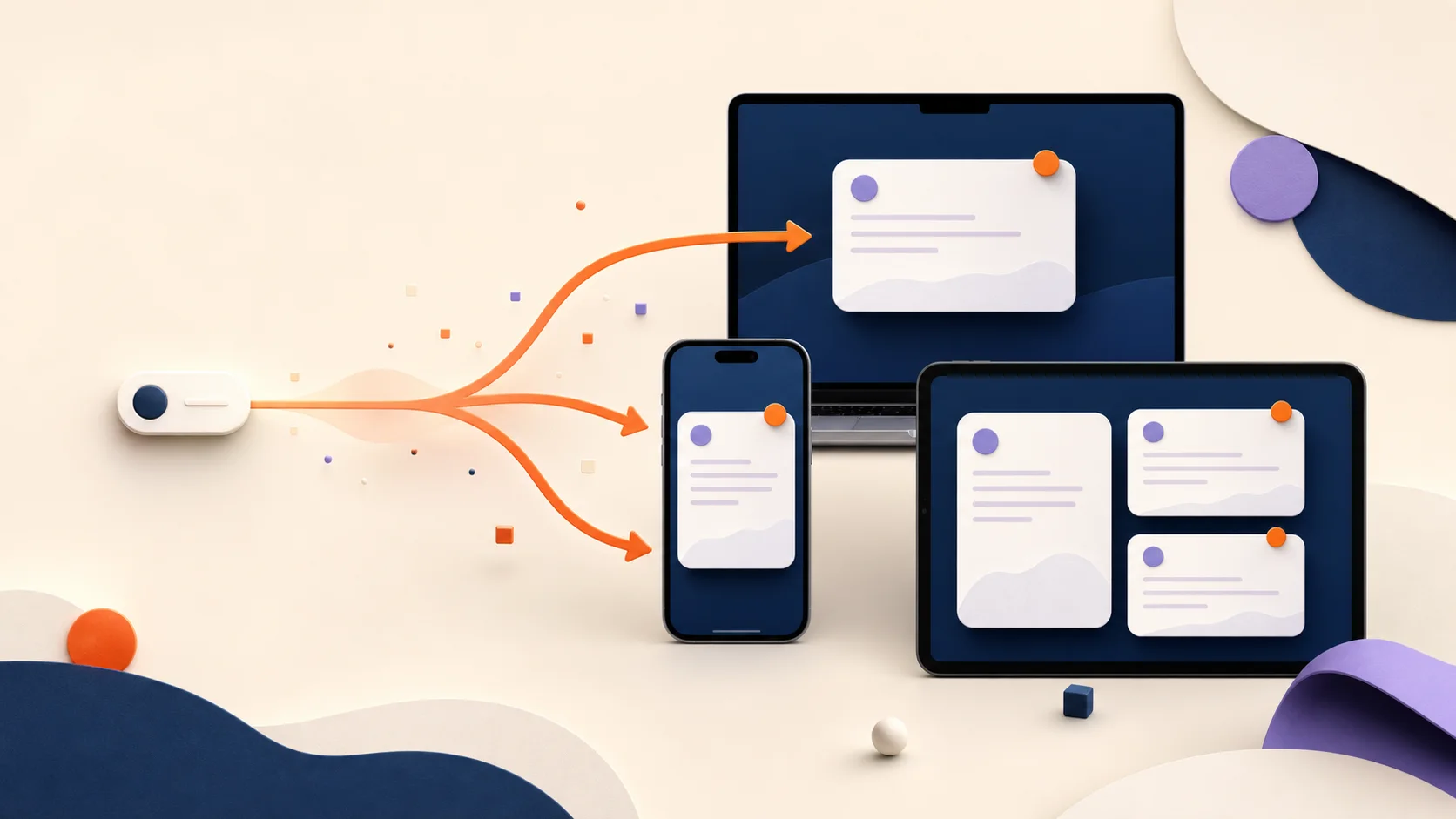
On Mac, a utility can detect a typed trigger and replace it in compatible fields. On iPhone and iPad, ExpandCaptain provides a custom keyboard where the user browses or searches the library, chooses a snippet, reviews the inserted text, and decides whether to send.
That deliberate tap-based workflow is appropriate for mobile because Apple gives keyboard extensions a constrained interface and the host app remains in control of the text field.
Where a third-party keyboard cannot appear
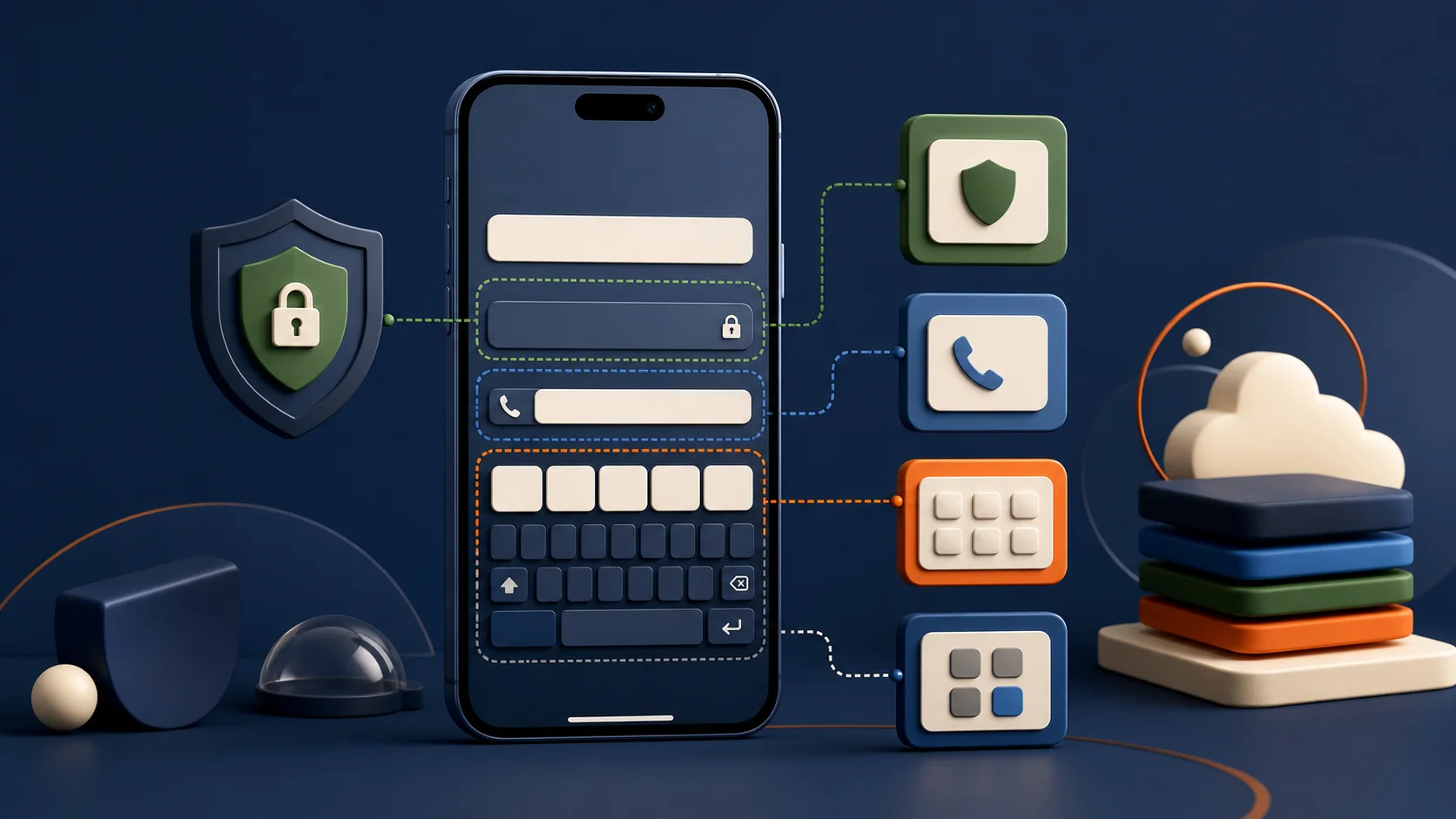
Apple's current UIKit documentation names three important cases. Secure text fields temporarily show the system keyboard. Fields configured as phone-pad or name-phone-pad also show the system keyboard. Finally, an app can reject third-party keyboard extensions entirely.
These are platform protections and application choices, not necessarily a defect in the keyboard. A product should say it works in ordinary supported text fields, not promise universal access.
- Password and other secure-entry fields.
- Phone-pad and name-phone-pad input types.
- Apps whose developers disable third-party keyboard extensions.
- Specialized editing surfaces that do not behave like ordinary text fields.
What Allow Full Access changes
Apple says open access can permit network access and writing to shared app-group containers, enabling features such as shared configuration or server-backed processing. Without open access, the keyboard runs with tighter sandbox restrictions. The user must explicitly enable Allow Full Access in Settings.
The permission name is broad, so the developer should explain which feature requires it, what data can leave the device, and whether the keyboard sends keystrokes to a server. Users should read the product's privacy statement and prefer the minimum permission posture that supports the features they need.
Design a mobile-safe snippet library
Keep mobile snippets short enough to review before sending. Label similar addresses or responses clearly. Separate personal and work folders. Use guided templates for names and dates so stale details do not hitchhike from an old message.
Treat the mobile keyboard as a convenience surface, not a secret vault. Store credentials in a password manager and retrieve sensitive records only through approved systems.
- 01
Enable the keyboard and test it in Notes first.
- 02
Create a folder with five low-risk snippets.
- 03
Verify insertion in the messaging and mail apps you actually use.
- 04
Confirm the keyboard disappears in secure fields as expected.
- 05
Review Full Access and privacy documentation before enabling optional capabilities.
A simple troubleshooting order
If the keyboard does not appear, first check whether it is enabled in iOS Settings and selected with the globe key. Then determine whether the field is secure, a phone pad, or inside an app that blocks third-party keyboards. Finally, reopen the host app and verify the snippet library has synced.
This sequence separates expected platform behavior from setup or sync problems and gives support a more useful report than ‘the keyboard does not work.’
Common questions
01Why does the custom keyboard disappear in a password field?+
Apple temporarily replaces third-party keyboards with the system keyboard in secure text fields. That is expected platform behavior.
02Can an app block the ExpandCaptain keyboard?+
Yes. Apple allows an app developer to reject third-party keyboard extensions in that app.
03Does Full Access automatically mean a keyboard records everything?+
No, but it enables broader capabilities such as network and shared-container access. The developer must explain how those capabilities are used, and the user should review the privacy posture.
Sources
Product features and prices were checked on July 16, 2026. They can change. Comparisons describe published scope and are not claims of complete feature parity.
- Apple: Configuring a custom keyboard interface Official secure-field, phone-pad, and app-level keyboard restrictions.
- Apple: Configuring open access for a custom keyboard Official capabilities, privacy considerations, and responsibilities associated with Full Access.
- ExpandCaptain on the App Store Official current custom-keyboard and iCloud-sync product description.